
AutoCAD Installation Guide — Step by Step
Learn how to properly install AutoCAD on your system, including requirements, setup, and troubleshooting tips...
Introduction — Start Your Digital Design Journey with AutoCAD
AutoCAD is the foundation of modern architectural and engineering design. Before you draw your first floor plan, elevation, or 3D model, the most important step is installing AutoCAD correctly.
Whether you are a DAE Architecture student, a B.Arch undergraduate, a civil draftsman, or someone starting freelance drafting, AutoCAD is the industry standard. Almost every architectural firm, construction company, and design studio in Pakistan and worldwide relies on AutoCAD for precision drafting.
This guide is written specifically for beginners. It explains how to download AutoCAD legally for free, install it step by step, fix common installation problems, and configure it properly after installation. No confusion, no skipped steps — just a clean, professional setup.

What is AutoCAD & Why You Need It
AutoCAD is a Computer-Aided Design (CAD) software developed by Autodesk. It is used to create accurate 2D drawings and detailed 3D models for buildings, furniture, roads, mechanical parts, and electrical layouts.
In architectural practice, AutoCAD is used for:
- Floor plans, sections, and elevations
- Furniture and interior layouts
- Construction drawings and working details
- Coordination with engineers and contractors
Learning AutoCAD starts with installation. Once installed correctly, every other skill — shortcuts, drafting standards, and 3D modeling — becomes much easier to learn.
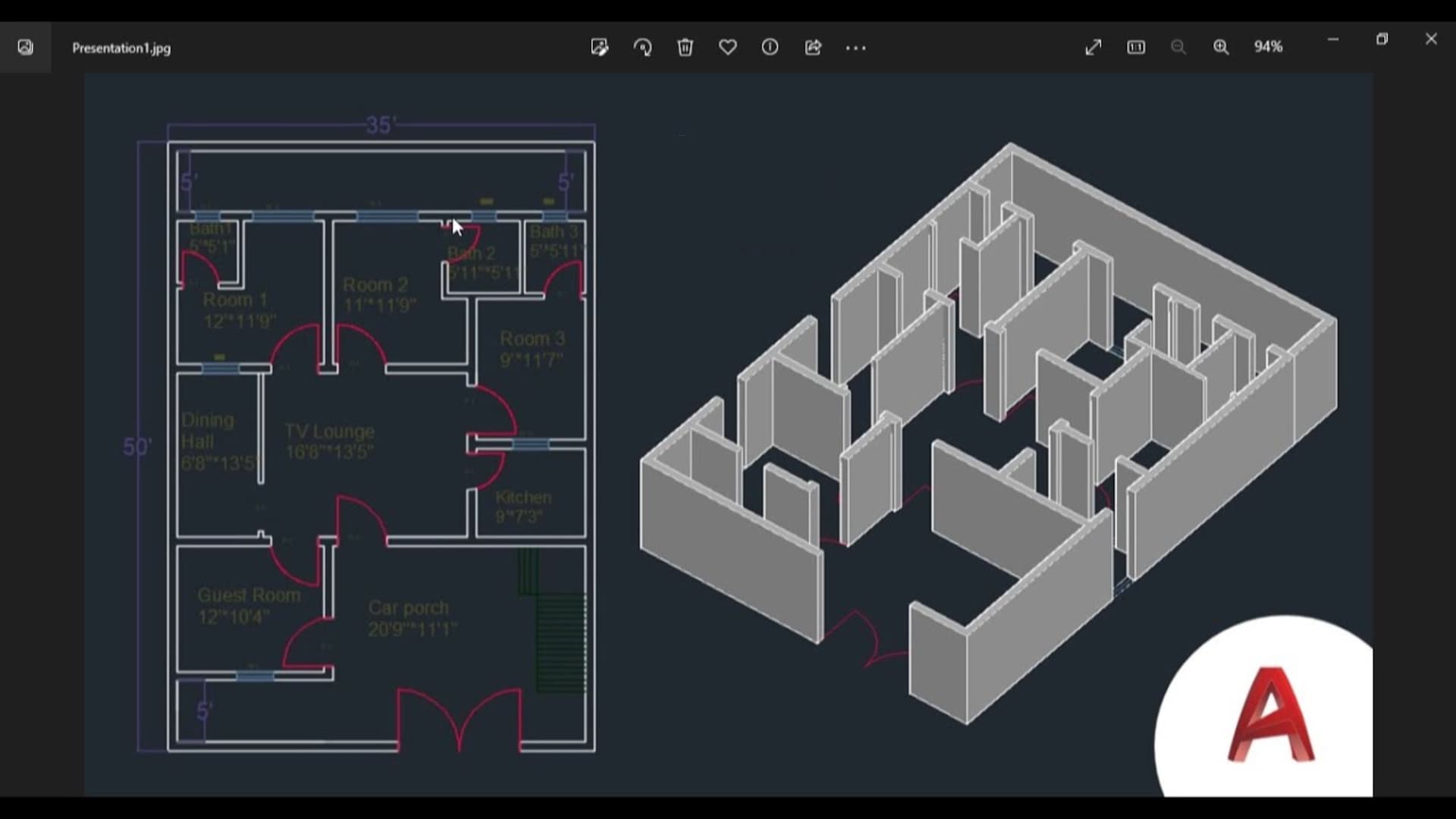
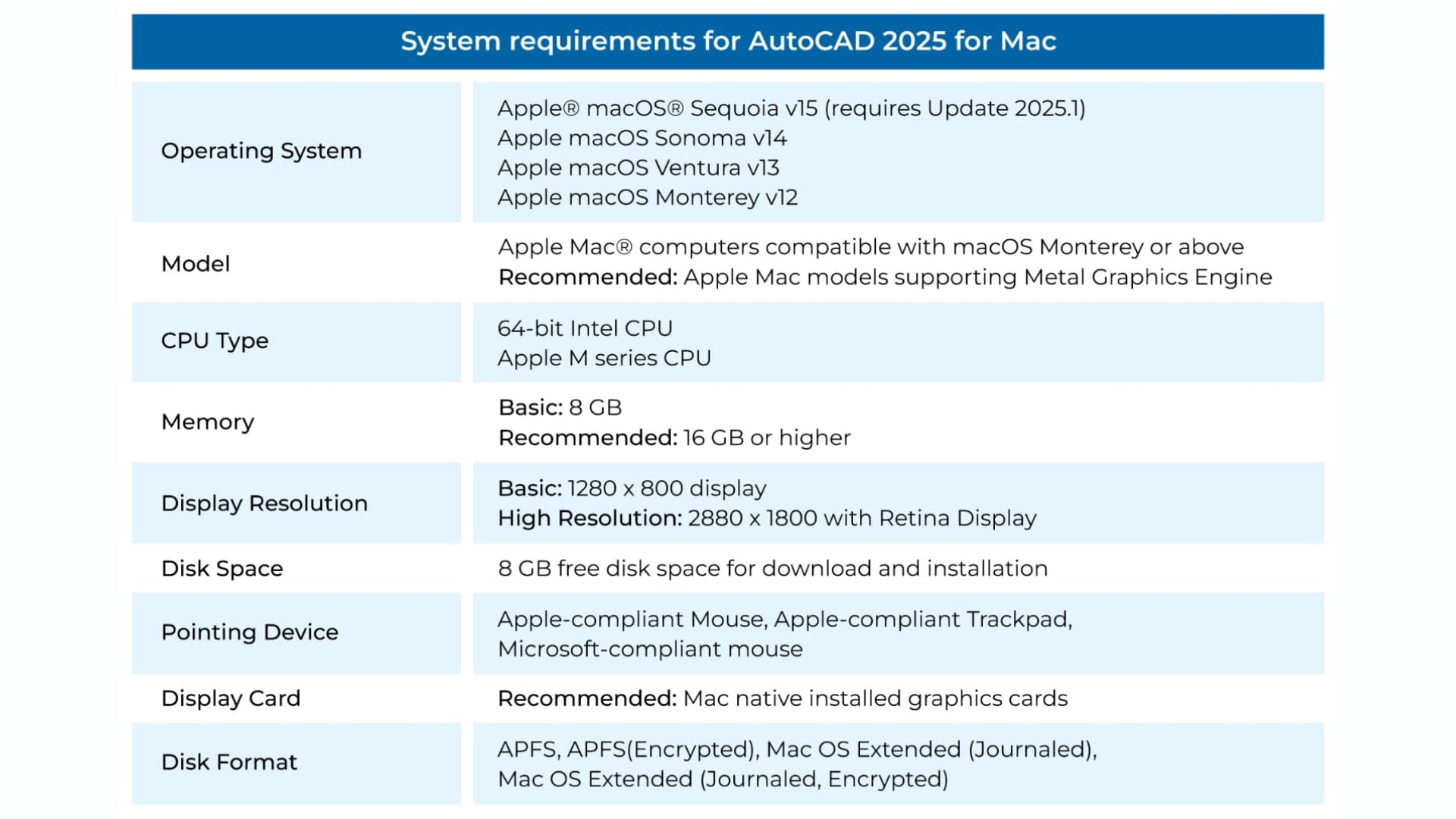
System Requirements for AutoCAD 2025
Before installing AutoCAD, make sure your computer meets the minimum requirements. Installing AutoCAD on an underpowered system can lead to crashes, lag, and frustration.
- Processor: Intel i5 / AMD Ryzen 5 (minimum)
- RAM: 8 GB minimum, 16 GB recommended
- Graphics Card: 2 GB DirectX 12 compatible
- Storage: 10 GB free space (SSD recommended)
- Operating System: Windows 10 or 11 (64-bit)
- Internet: Required for download and activation
💡 If you have a low-end laptop, consider AutoCAD LT for smoother performance.
How to Download AutoCAD (Free Student Version)
Autodesk provides a 100% legal and free student version of AutoCAD for students and educators. This version includes all features of the commercial version.
- Visit Autodesk Education website
- Create an Autodesk account
- Verify student status using ID card or admission slip
- Download AutoCAD for Windows (64-bit)

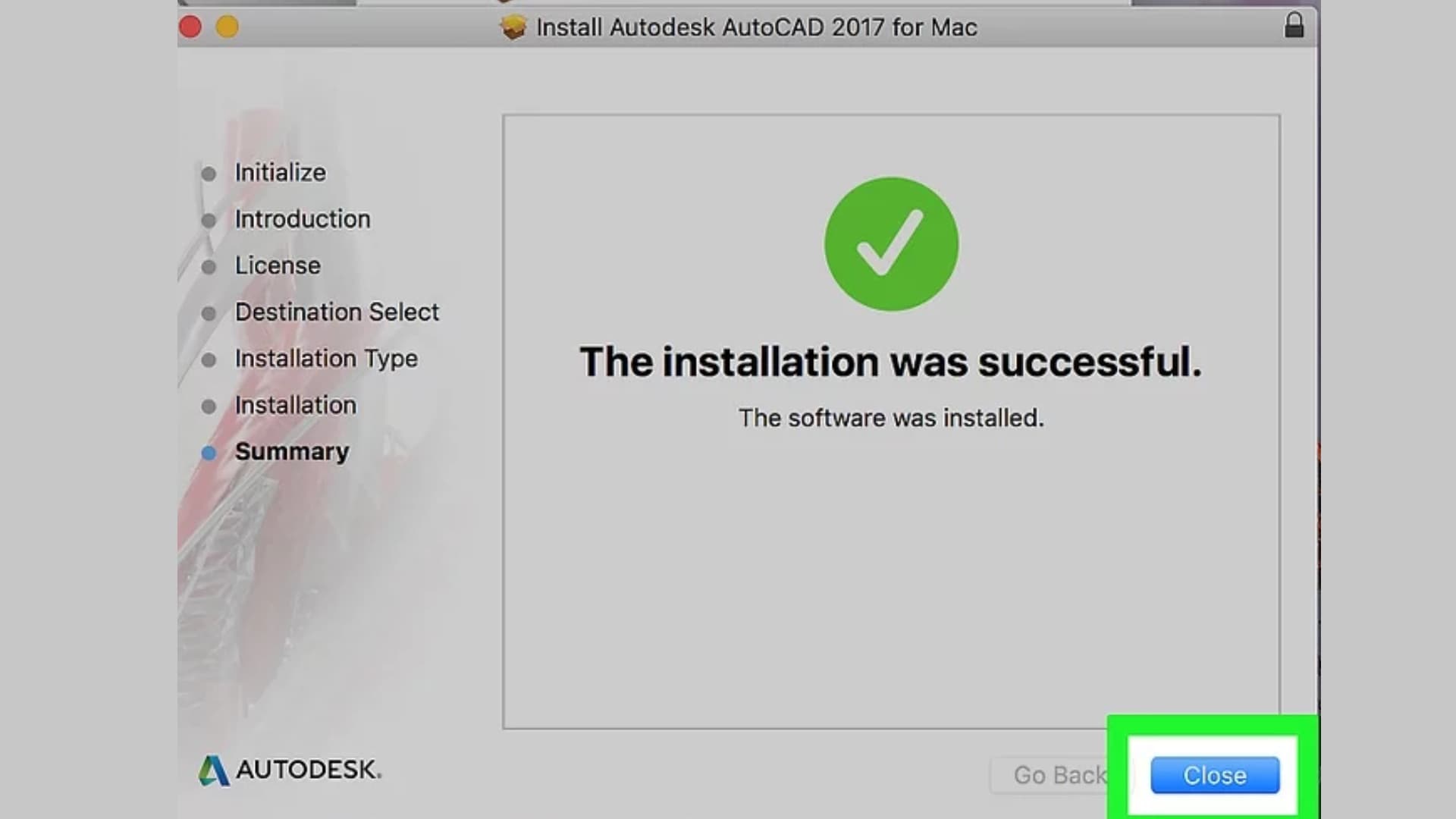
AutoCAD Installation — Step by Step
- Run installer as administrator
- Accept license agreement
- Select installation location
- Install all recommended components
- Wait 15 to 30 minutes for installation
- Launch AutoCAD
- Sign in to activate license
Common AutoCAD Installation Problems & Fixes
- Error 1603: Run installer as administrator
- Installation stuck: Disable antivirus temporarily
- License issue: Re-login Autodesk account
- Crash on startup: Update graphics drivers
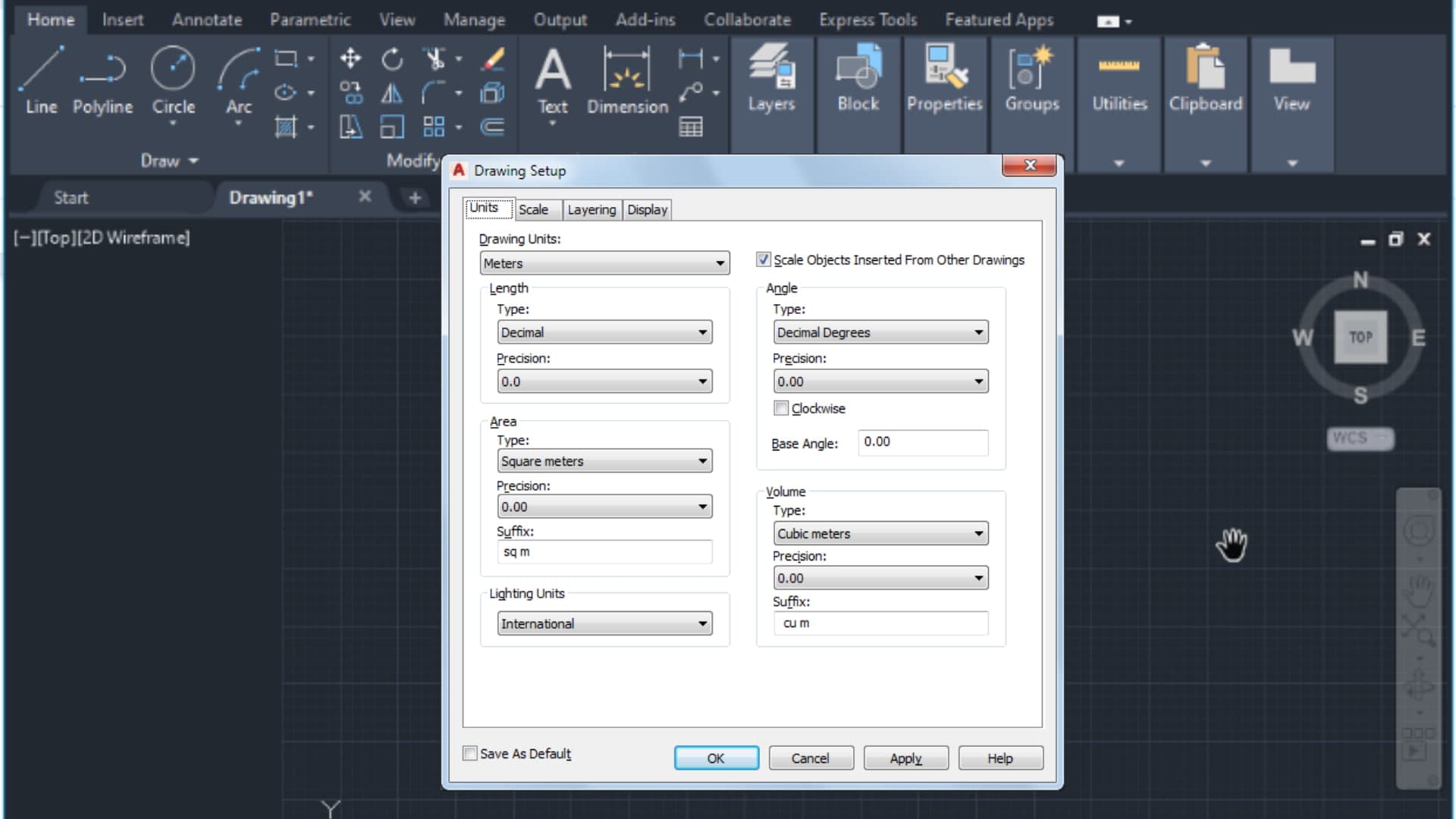
Post-Installation Setup for Beginners
- Set drawing units
- Enable Ortho and Snap
- Define drawing limits
- Save custom template
Recommended AutoCAD Add-ons
- AutoCAD Architecture Toolset
- Autodesk App Manager
- DWG TrueView
Frequently Asked Questions (FAQs)
Is AutoCAD free for students?
Yes, Autodesk provides a free student version valid for one year.
Can AutoCAD run on low-end laptops?
It can, but performance improves significantly with SSD and 16 GB RAM.
Is AutoCAD difficult for beginners?
No. With proper installation and basic practice, beginners learn quickly.
Conclusion — Installation is Your First Professional Step
Installing AutoCAD correctly is the foundation of your design journey. Once installed and configured properly, AutoCAD becomes a powerful tool that turns your ideas into professional drawings.