
AutoCAD Beginner Guide — Learn AutoCAD Quickly
Start using AutoCAD today with this beginner-friendly guide covering the basics of drafting and designing for architecture...
Introduction — Your First Step into Digital Design
AutoCAD is the industry standard for drafting, designing, and modeling in architecture, engineering, and interior design. Whether you aim to design a building, furniture, or mechanical components, AutoCAD provides the tools to create accurate and professional drawings.
This guide is perfect for beginners in Pakistan or anywhere, offering step-by-step explanations, practical examples, and tips to make your first drawings smooth and correct. By the end, you will feel confident to create your own 2D and 3D projects.
What is AutoCAD?
AutoCAD (Automatic Computer-Aided Design) is software that allows professionals and students to create precise 2D drawings, 3D models, and construction plans. It's widely used in industries like architecture, civil engineering, mechanical design, and interior design.
- Create technical 2D drawings for buildings, machinery, and diagrams.
- Model 3D structures, components, and architectural designs.
- Design floor plans, site layouts, elevations, and construction documentation.
Why Learn AutoCAD?
- Industry Standard: Nearly every engineering and architectural office uses AutoCAD.
- Career Opportunities: Become a CAD draftsman, 3D modeler, or designer.
- Efficiency and Accuracy: AutoCAD saves time and reduces errors.
- Foundation for Advanced Software: Makes learning Revit, SketchUp, or 3ds Max easier.
- Freelance Potential: Drafting and modeling services for online clients.
System Requirements for AutoCAD 2025
| Processor | Intel i5 / AMD Ryzen 5 (i7/Ryzen7 recommended) |
| RAM | 8 GB (16 GB recommended) |
| Graphics | 2 GB+ DirectX 12 compatible |
| Storage | 10 GB free (SSD preferred) |
| OS | Windows 10 / 11 64-bit |
| Internet | Required for installation & updates |
💡 Tip: Using AutoCAD LT is ideal for low-end laptops.
Installation Guide
- Visit the Autodesk Education Portal.
- Sign up using your student email and verify your account.
- Select AutoCAD 2025 and download the installer.
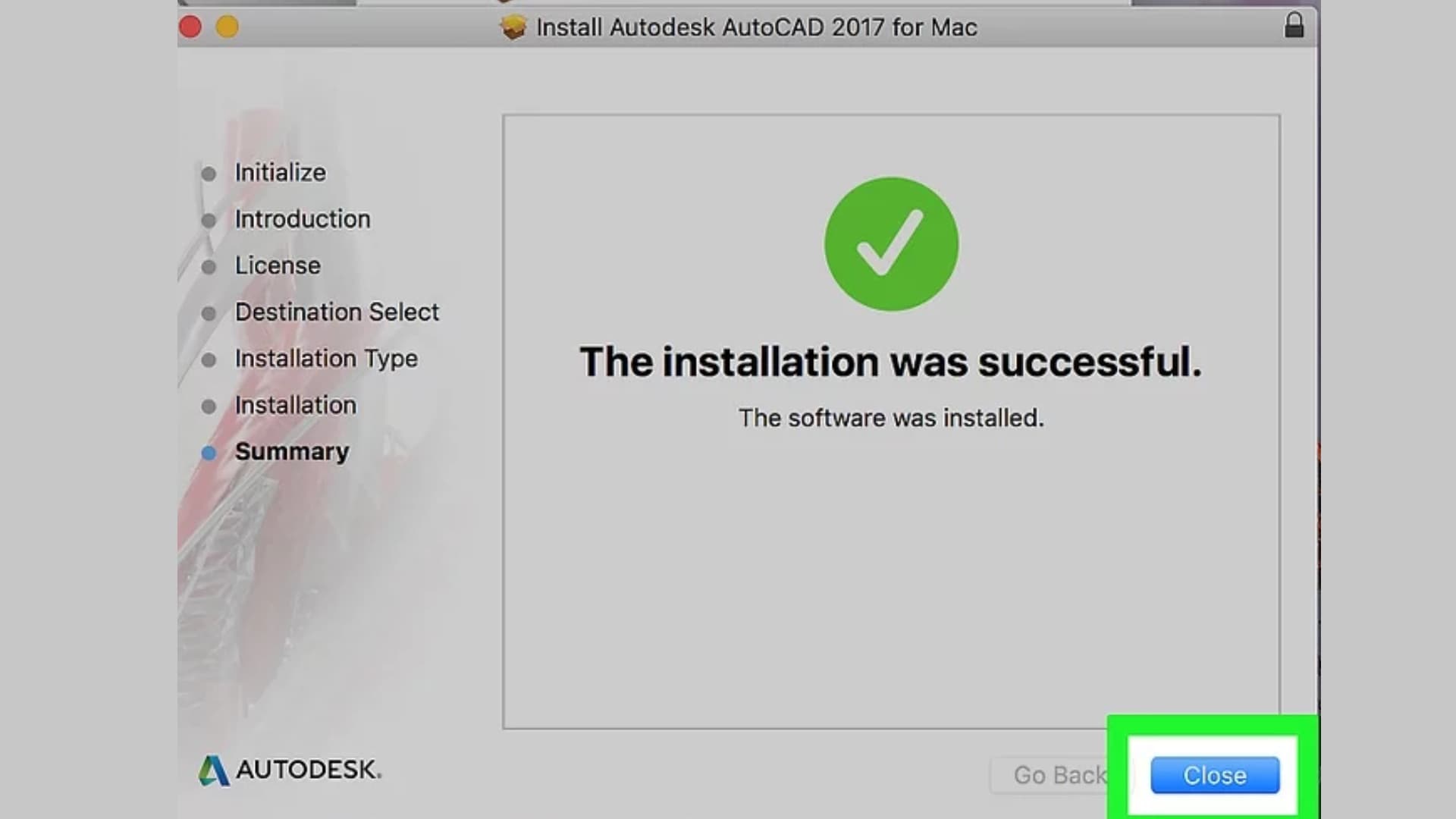
- Run the installer as administrator and follow the on-screen instructions.
- Sign in to activate your free student license (1-year valid).
AutoCAD Interface Overview
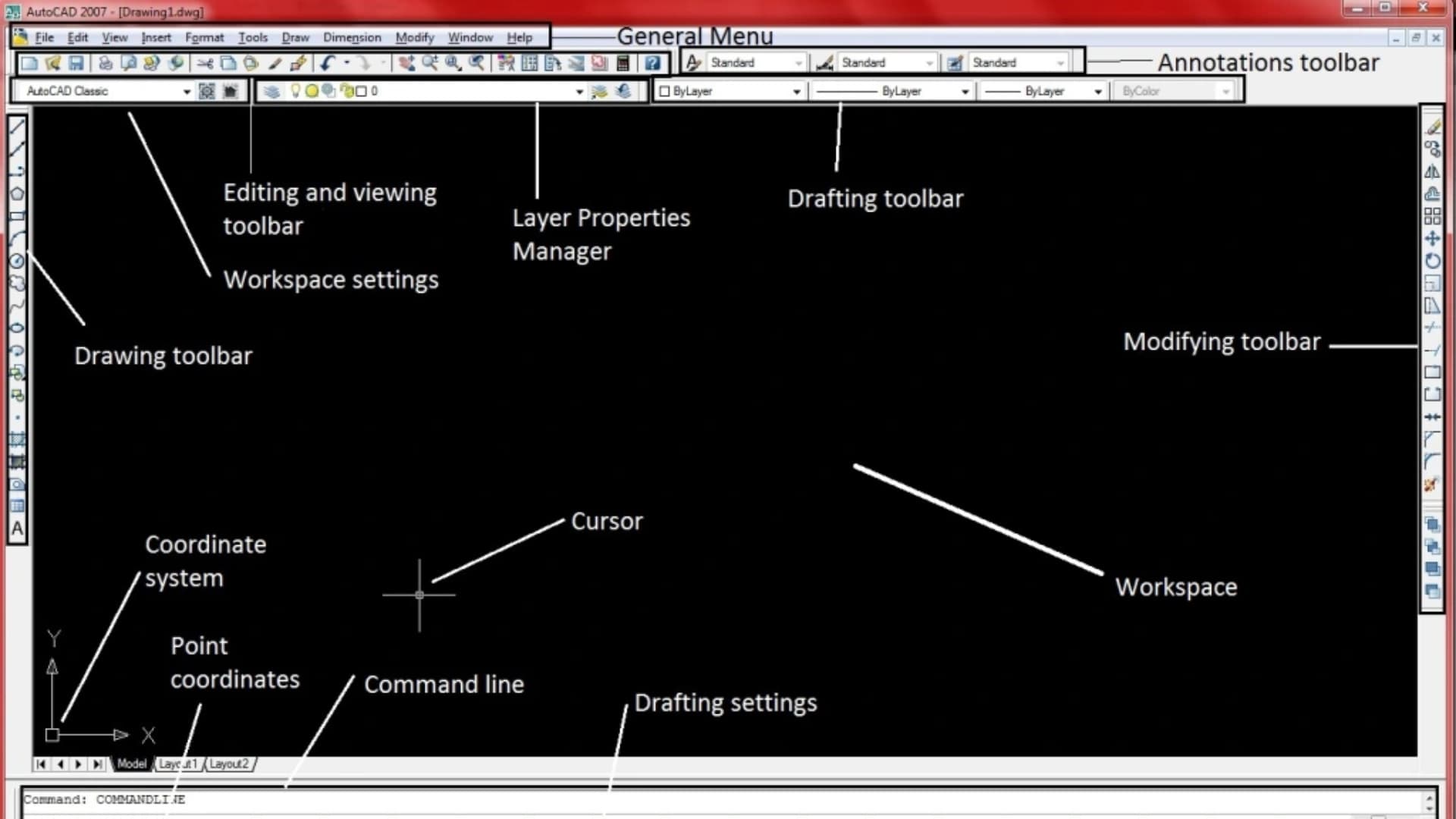
The interface may seem overwhelming at first, but here’s a breakdown:
- Ribbon: Contains all toolsets like Home, Insert, Annotate, View.
- Drawing Area: The workspace for your drawings.
- Command Line: Quickly enter commands like LINE, CIRCLE, OFFSET.
- Navigation Bar: Zoom, pan, and orbit tools.
- Status Bar: Shows coordinates, grid, snap, and UCS controls.
Basic Drawing Tools
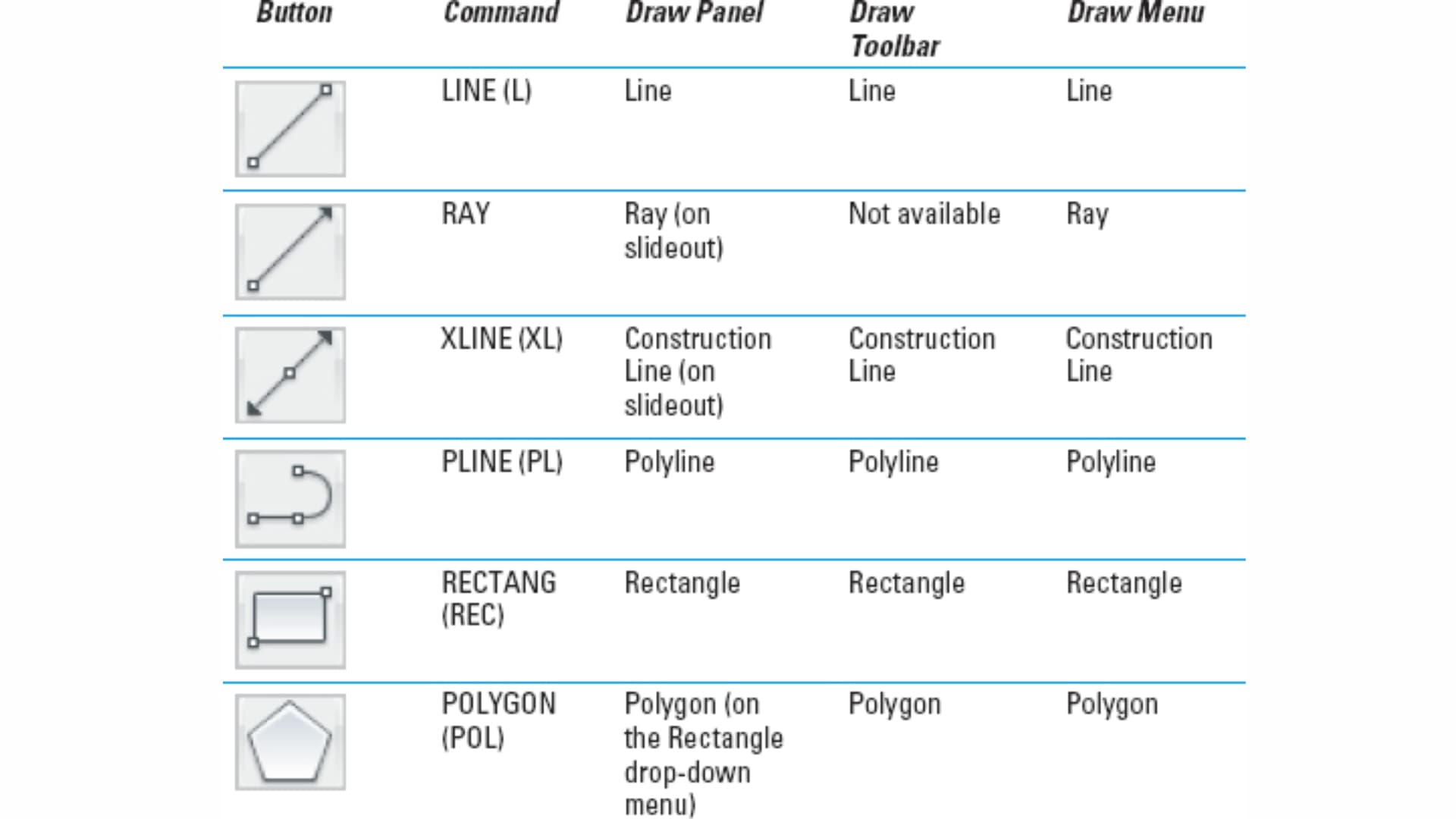
| LINE (L) | Draw straight lines |
| CIRCLE (C) | Draw circles |
| RECTANGLE (REC) | Draw rectangles |
| ARC (A) | Draw arcs |
| POLYLINE (PL) | Draw connected line segments |
| HATCH (H) | Fill areas with patterns |
| OFFSET (O) | Create parallel lines |
| TRIM (TR) | Trim unwanted parts |
Creating Your First Drawing
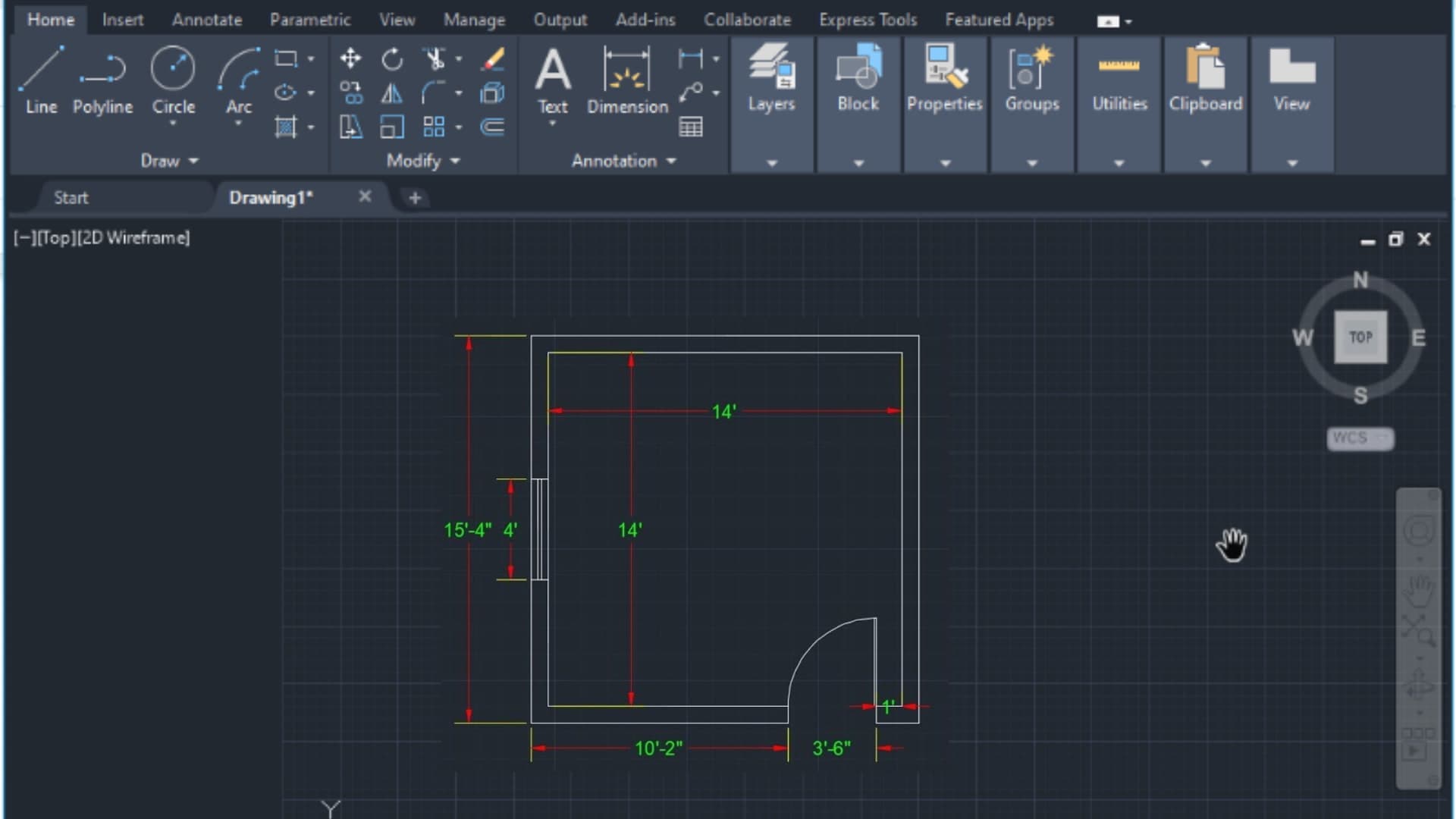
Now that you understand the interface and basic tools, it’s time to create your first drawing. Beginners should start with something simple, like a single-room floor plan.
- Open AutoCAD and create a new drawing using the Start Drawing template.
- Set your units to millimeters or inches depending on your region.
- Draw walls using the LINE tool or RECTANGLE for simplicity.
- Add doors and windows on separate layers for easy editing.
- Save your file: File → Save As → RoomPlan.dwg.
🎉 Congratulations! You just created your first AutoCAD drawing.
Layers and Colors — Organizing Your Work
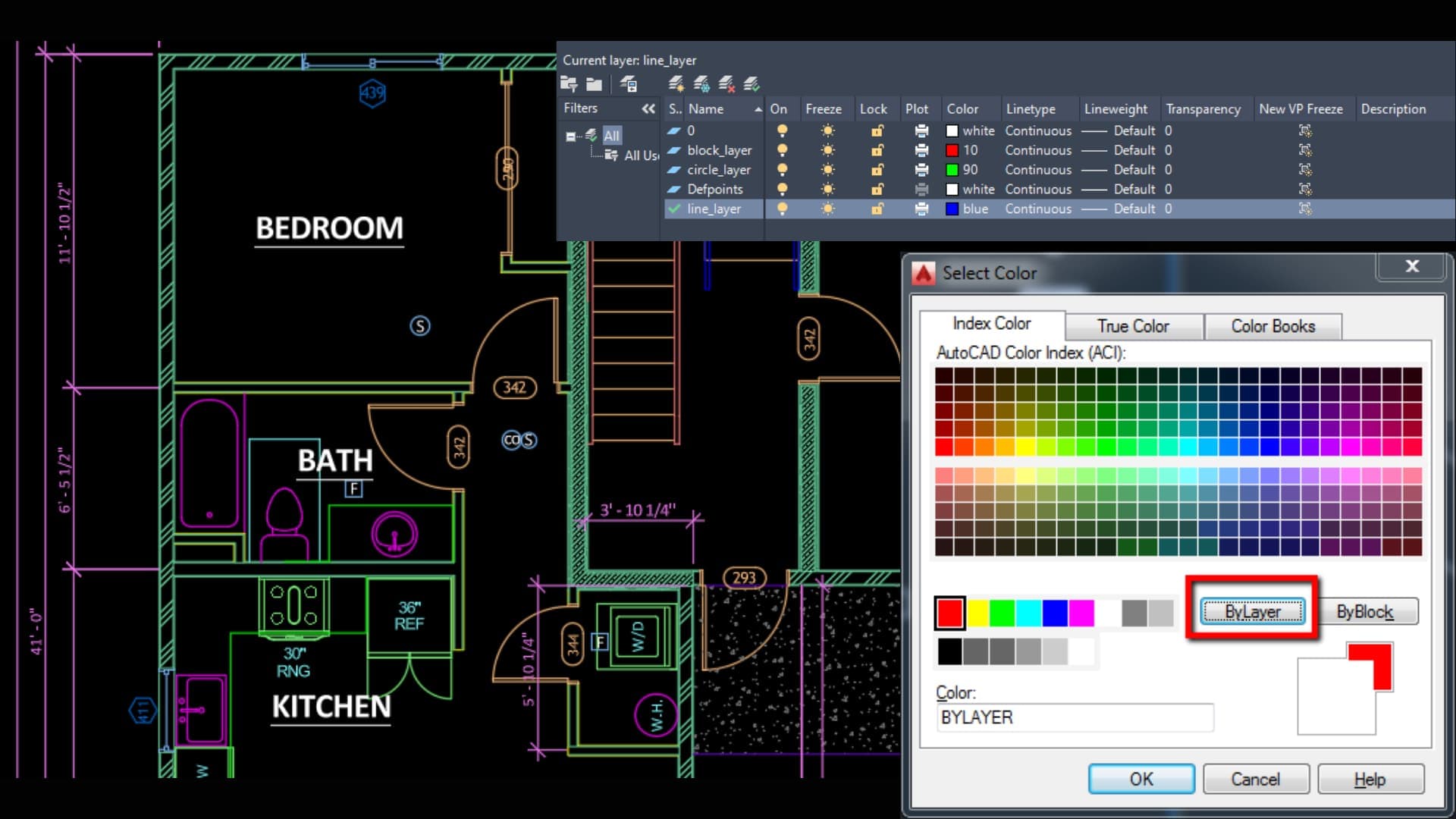
Layers allow you to organize different parts of your drawing, making it easier to edit and visualize. For example:
- Walls Layer: Red color, main structure.
- Doors Layer: Green color, editable separately.
- Windows Layer: Blue color, editable independently.
- Dimensions Layer: Yellow color, measurements and annotations.
Always name your layers clearly. Using layers efficiently will save hours when editing large projects.
Essential Settings for Beginners
Before you dive deeper, make sure your settings are optimized for learning:
- Enable Ortho Mode for drawing straight lines easily (F8 key).
- Set Grid and Snap for precise drawing alignment.
- Customize the Quick Access Toolbar with commonly used commands.
- Adjust Annotation Scale for readable dimensions in layouts.
- Save a default template with your preferred units, layers, and line types.
AutoCAD 2D vs 3D — Understanding the Difference
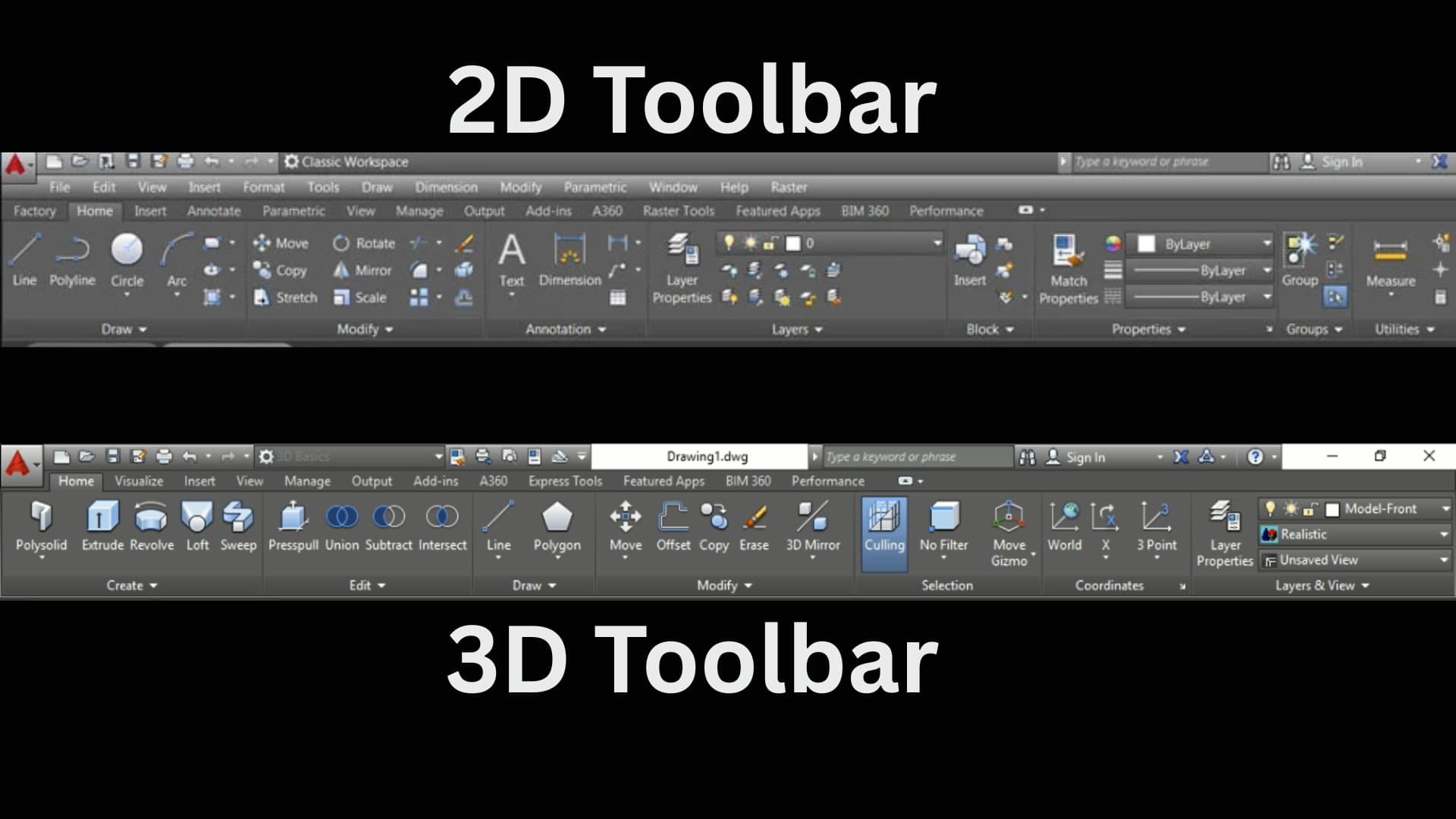
AutoCAD offers both 2D drafting and 3D modeling capabilities:
- 2D Drafting: Floor plans, schematics, and layouts. Easy for beginners.
- 3D Modeling: Create realistic objects and buildings. Requires more skills.
Common Beginner Mistakes
- Not using layers properly — leads to messy files.
- Ignoring units — causes scaling problems later.
- Not saving frequently — risk of losing hours of work.
- Drawing in wrong UCS (User Coordinate System) — complicates 3D work.
- Overusing unnecessary commands — slows workflow.
AutoCAD Learning Path for Beginners
Here’s a structured 5-week learning plan:
| Week 1 | Interface, Units, Lines, Shapes |
| Week 2 | Layers, Dimensions, Text, Hatching |
| Week 3 | Blocks, Groups, Layouts, Plotting |
| Week 4 | 3D Basics — Extrude, Presspull, Orbit |
| Week 5+ | Advanced tools, Projects, Freelance Portfolio |
💡 Tip: Practice at least 1 hour daily for consistent skill improvement.
Best Online Resources to Learn AutoCAD
Free Platforms
- Autodesk Learning Hub — official tutorials and exercises.
- YouTube Channels: SourceCAD, Balkan Architect, CAD in Black.
- Coursera / EdX: Free beginner courses with certificates.
Paid Platforms
- Udemy AutoCAD Complete Course — beginner-friendly and affordable.
- LinkedIn Learning — professional-level courses with certificates.
- Skillshare — creative and architectural design tutorials.

AutoCAD Projects for Beginners
Start small and build confidence:
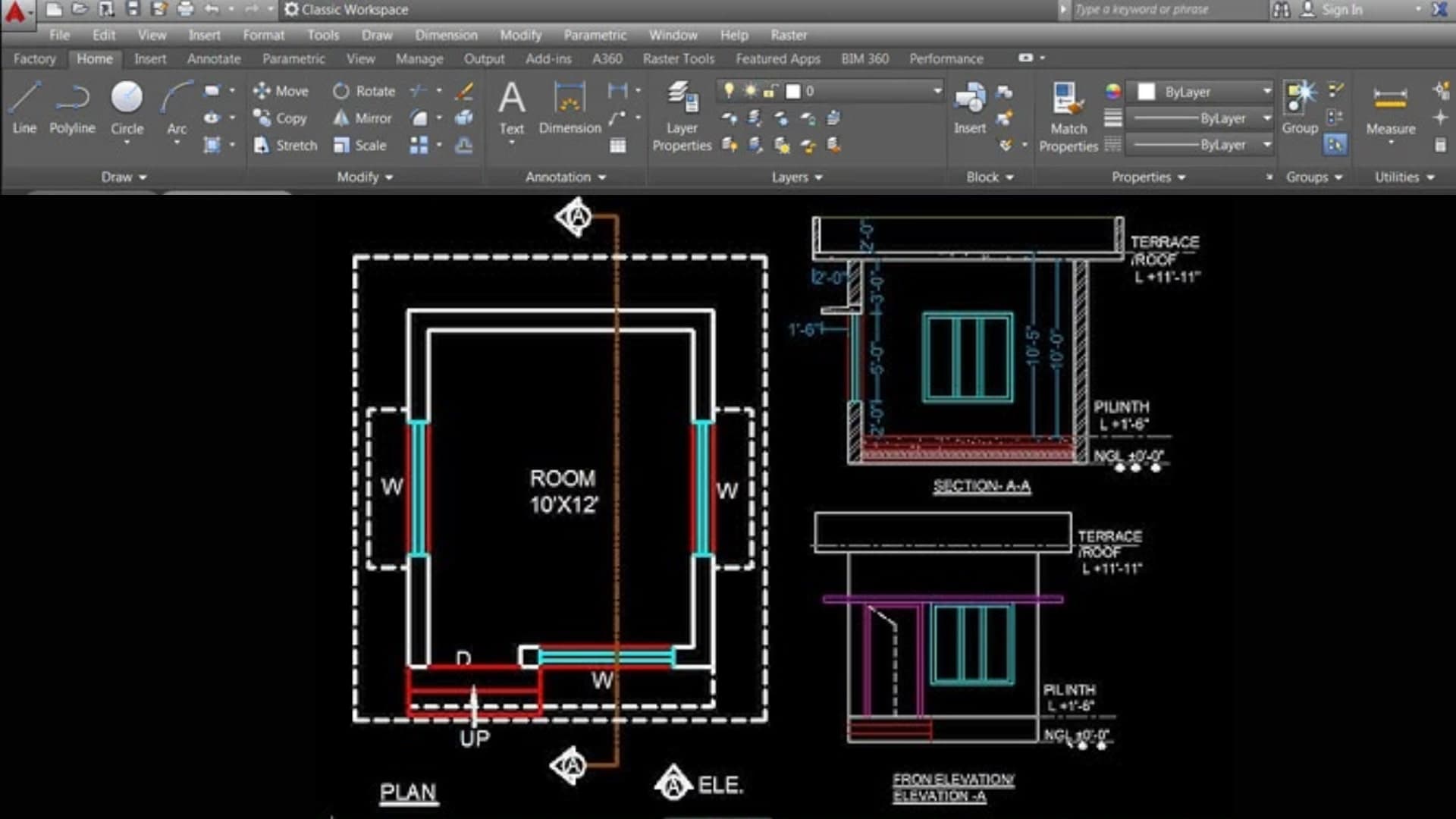
- Single-room floor plan
- Two-bedroom house layout
- Furniture drawings (table, chair)
- Simple house elevation
- Site layout with boundary walls
Career Scope for Beginners in Pakistan
AutoCAD opens doors to many entry-level positions:
- AutoCAD Draftsman (Intern / Trainee)
- Junior CAD Operator
- Architectural Assistant
- Site Supervisor (with drawing knowledge)
Starting salaries range from PKR 30,000—50,000/month and grow with experience.

Conclusion — Start Drawing, Start Designing
AutoCAD is the foundation for every designer and engineer. Mastering it will give you the confidence to take on real-world projects, freelance work, and complex 3D models.
Remember, every expert was once a beginner. Start with small projects, practice daily, and soon you’ll be ready to tackle larger designs.
So, open AutoCAD, experiment, and enjoy the journey. Your first line, first rectangle, and first project are the first steps toward a successful design career.